How to host a quizshow
A big screen, an internet connection and your guests' own phones: that is the whole setup. Here is the night in two minutes, and after that every control you have, one by one.


The whole night in two minutes
Five things happen at every show, in this order.
-

You write the show
Type your questions in the editor, pick the question types, add your photos, videos and music. A week before or an hour before.
-
You put it on the big screen
Press Present and move the window to the TV or projector. A code appears.
-
Everyone joins with the code
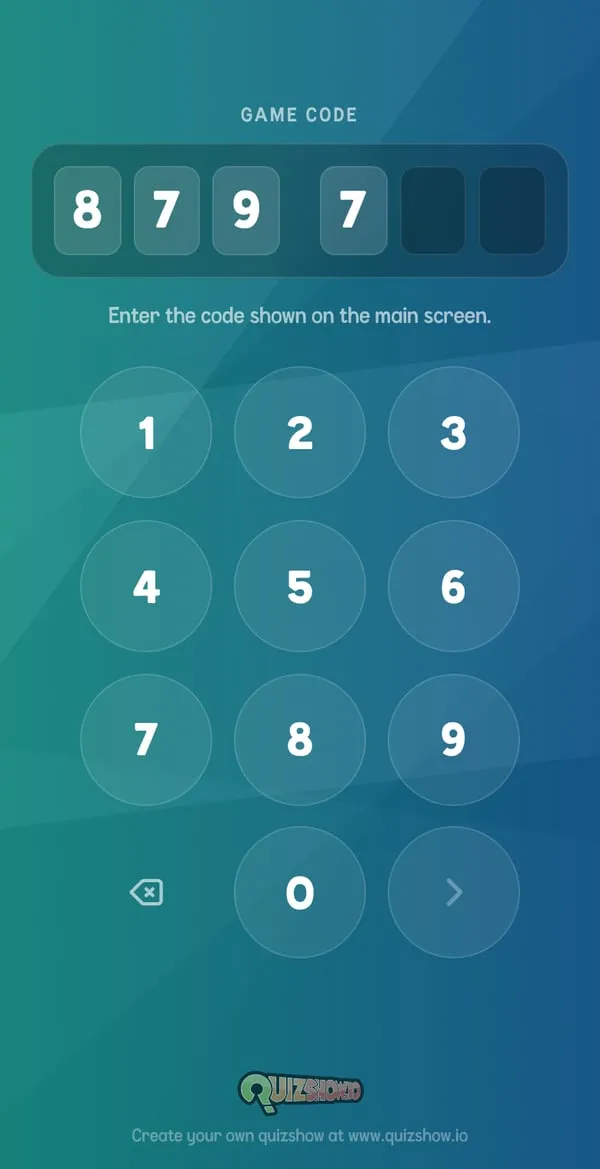
Your guests open quiz.sh on their phone and type six digits, or scan the QR code. No app, no account.
-
You press Space
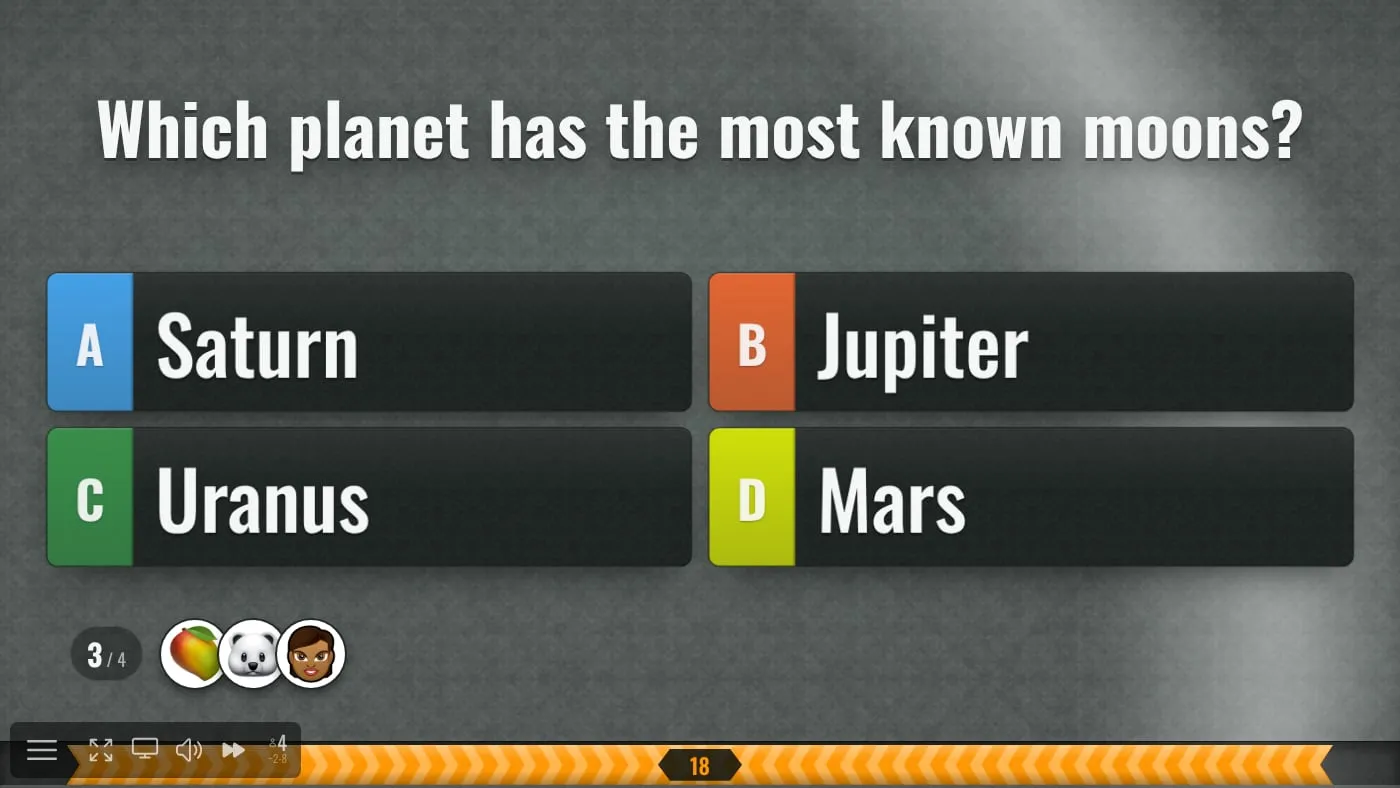
Every press moves the show on. Everyone answers at the same time, on their phone.
-

The winner is crowned
Points are counted for you, live. The final score names the winner, and you hand over the prize.
What you need
- A computer with a browserAny laptop will do. Chrome works best.
- A big screenA TV, a projector, or your shared screen in a video call.
- Internet for everyoneFor your computer and each phone. Wi-Fi or mobile data, they do not have to share a network.
- SoundThe show has music, countdowns and effects. Use the TV's speakers or a speaker of your own.
What you can leave at home
- AppsNothing to install, for you or for your players.
- Player accountsA name is all a player types.
- BuzzersPhones, tablets and laptops are the buzzers.
- A helperOne host and one key run the whole show.
Which browsers and phones work: browser and mobile compatibility
The full guide
Eleven chapters, in the order of your night. Read it through once, or jump to the part you need.
Every screen on this page is the real thing, playing a sample quiz with invented players.
Set up the room
Three kinds of device play together. Your computer runs the show. The big screen shows it to the room. Every player's phone is their buzzer and their answer pad.
- Your computer Runs the show in a browser window. You press the keys.
- HDMI cable, AirPlay or Chromecast
- The big screen A TV or projector. Questions, countdowns and scores, readable from the back row.
- quiz.sh and the six-digit code
- Your players' phones One per player. Tablets and laptops work too.
Before your guests arrive
- Extend your display instead of mirroring it. The show goes on the big screen, and your laptop stays free for the presenter view.
- Send the sound to the TV or a speaker. Laptop speakers are too quiet for a room.
- Test the Wi-Fi with your own phone from where your guests will sit.
- Plug in the laptop and silence its notifications.
Rehearse before the night
You can play your whole show alone, as often as you like, before anyone else sees it.
Preview with two test phones
Preview in the editor plays the show with two test phones beside it. Answer on them with the mouse and watch each round play out. Nothing is saved.
Write your speaker notes
Every question has a Speaker Notes field in the editor: the story behind the answer, a punchline, who gets the next round of drinks. Only you see them, in the presenter view.
Do one run on the real screen
Open the show on the TV you will use and join with your own phone. Every time you open the show it gets a fresh code, so a rehearsal leaves nothing behind.

Show settings worth a look
They are in the editor under Settings and apply to the whole show.
| Setting | What it does |
|---|---|
| Maximum player count | Closes the room when it is full. “No limit” lets everyone in. |
| Start countdown | What happens between Start and the first question: Dials, Subtle or None. |
| Play Tutorial Videos | A short film explains each question type the first time it comes up. Narrated in English, and you can skip it. |
| Show Awards | Hands out awards such as “Master Liar” or “Quick Draw” on the final score screen. |
| Enable Reactions | Players can send emoji from their phones during the show. |
| Enable Rating | Players rate your show with one to five stars after the final score. |
| Score | The look of the final score screen: Basic, Fireworks, Election Night, Prime Time, Skyline. |
Open the doors: the lobby
Press Present in the editor. The show opens on the lobby, the screen your guests see when they walk in.
Swipe sideways to see the whole screen.
- quiz.sh The address your players type into the browser of their phone.
- The code Six digits, new for every show. Click it to copy the invite link.
- The QR code Scanning it skips the typing. Click it to show it big for the back row.
- Your players Everyone who is in. Click a name to remove that player, or to make them an admin who runs the show from their phone.
- Start Click it or press Space. A five-second countdown follows. Press again to skip it.
- The toolbar Host menu, fullscreen, presenter view, sound, and how many players are in. It hides while the mouse rests.
How your players get in
Three screens, about ten seconds.
- Type the code At quiz.sh, on any phone, tablet or laptop.
- Pick a name Up to 20 characters. No sign-up.
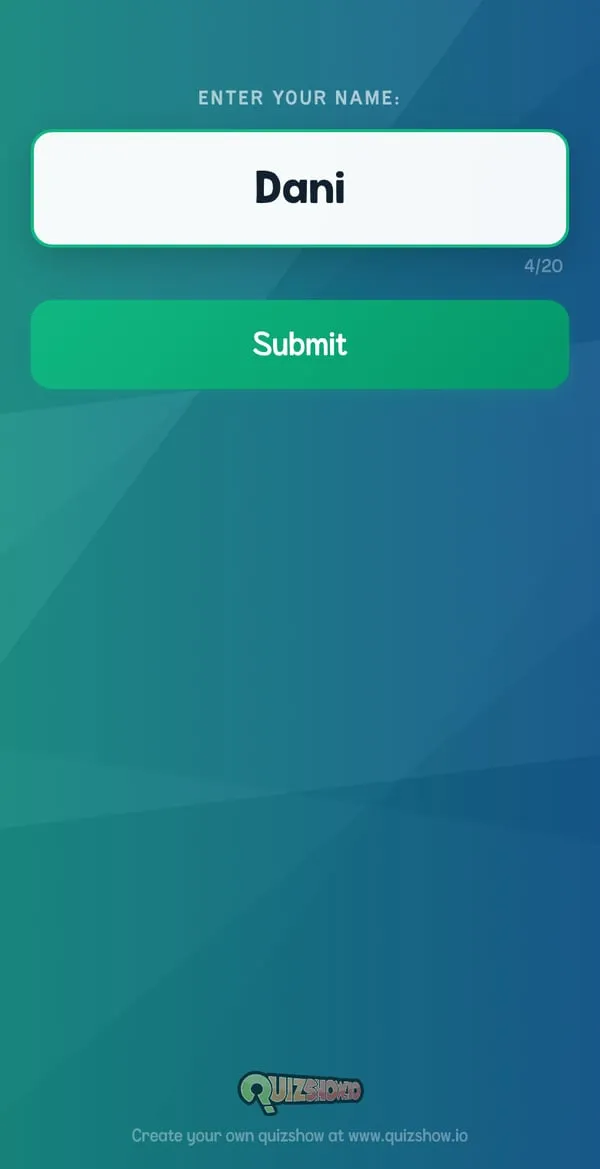
- They are in With an avatar they can change, or a photo of themselves.
Good to know
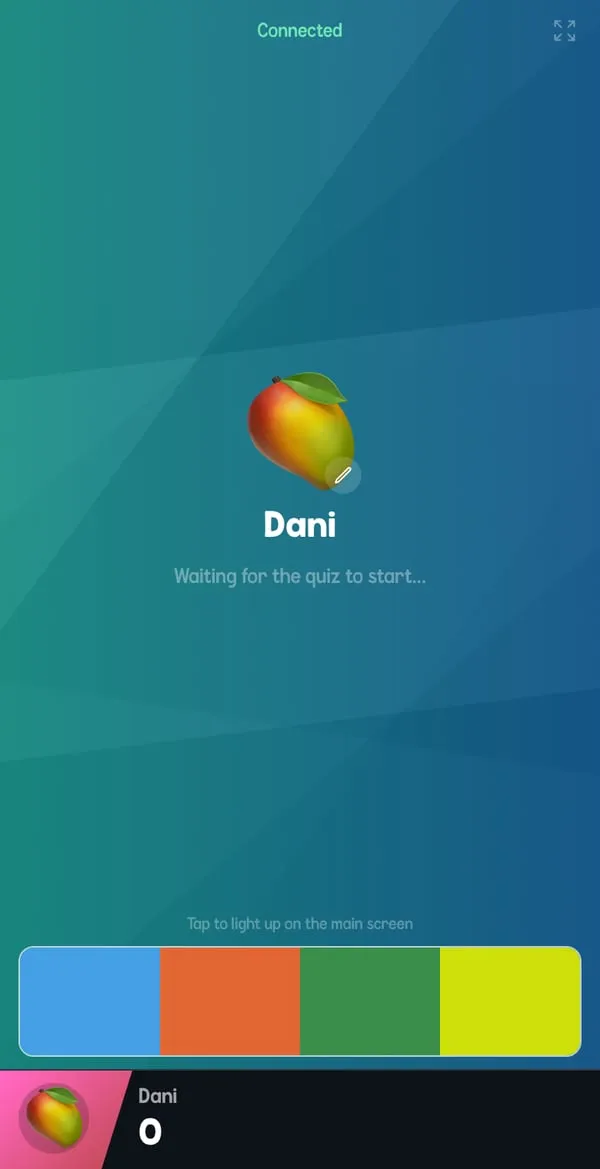
- A tap on the coloured stripe lights up that player's name on the big screen. Ask everyone to tap once and you see who is really connected.
- Latecomers can join while the show runs. They are in at the next question.
- Once everyone is in, you can lock the room: “Allow new players” in the host menu.
- Some rounds need two or three players. Until enough have joined, the screen says how many are missing instead of showing Start.
Run the show
From here on one key runs the night: Space. Every press moves the show to its next beat. The rest happens by itself.
One round, beat by beat
-

The intro
The title of the question and its number.
Space Moves on by itself
-
The question
The countdown runs on the big screen, and you see who has locked in an answer.
Ends when all have answered or time is up
-
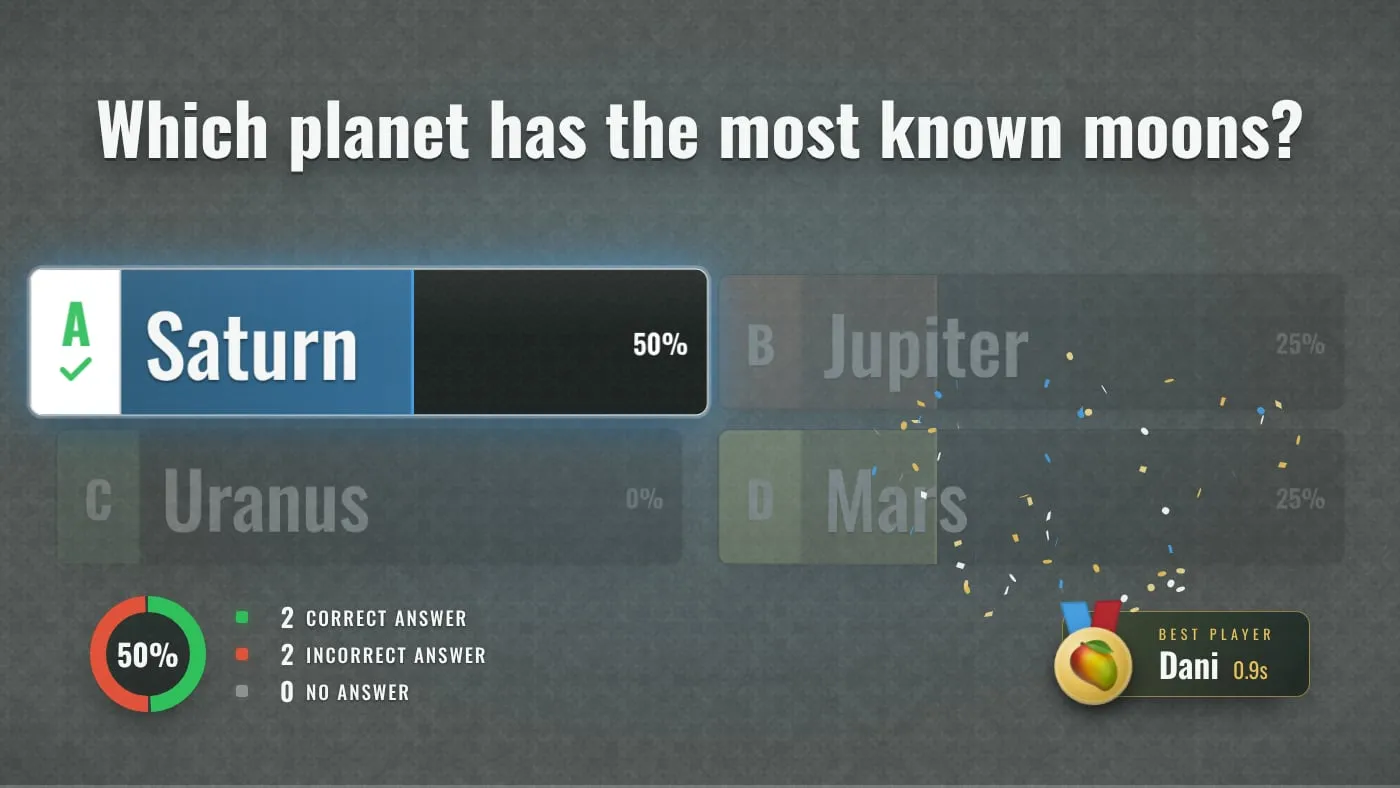
The reveal
The right answer, who got it and who was fastest. Take your time and tell the story.
Space Waits for you
-
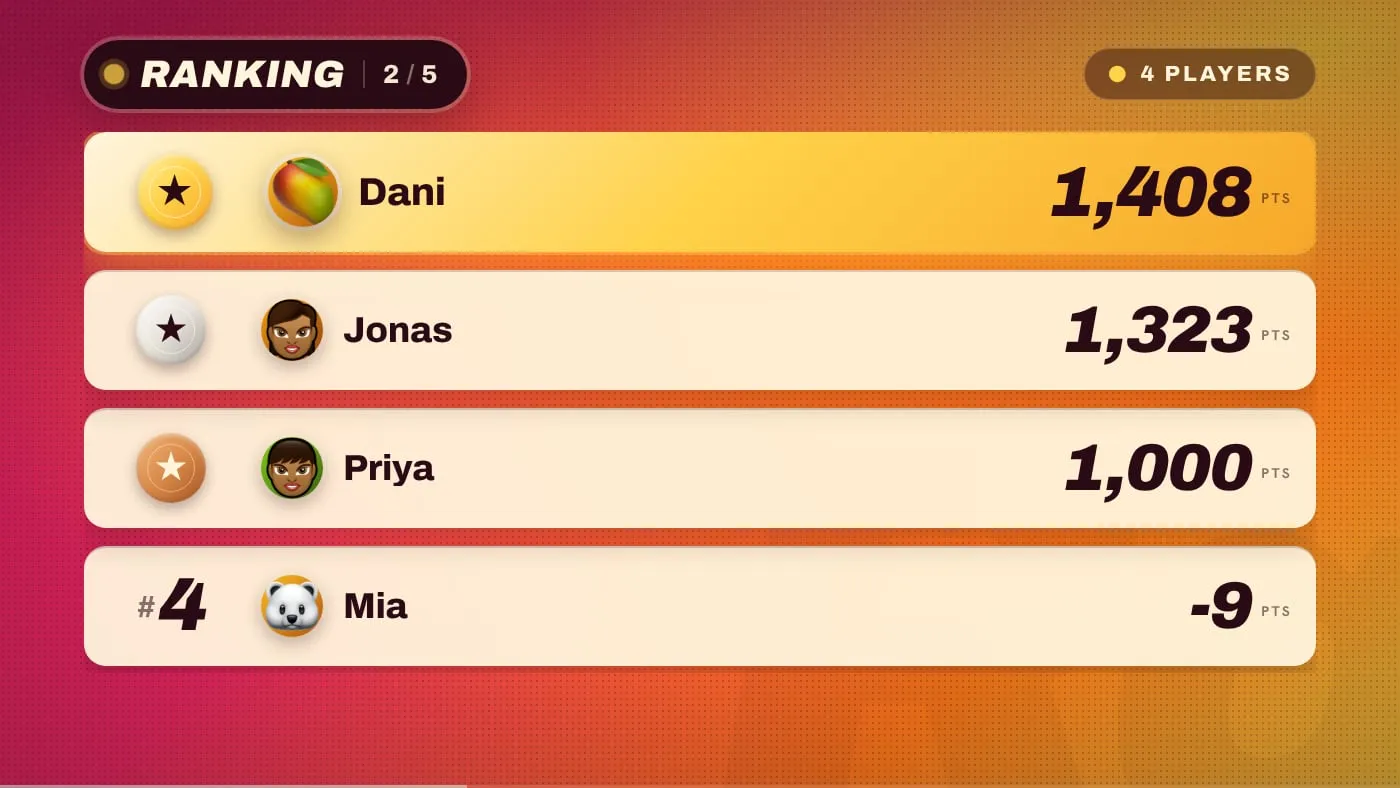
The scores
Add a Scores round wherever you want a ranking between questions.
Space Waits for you
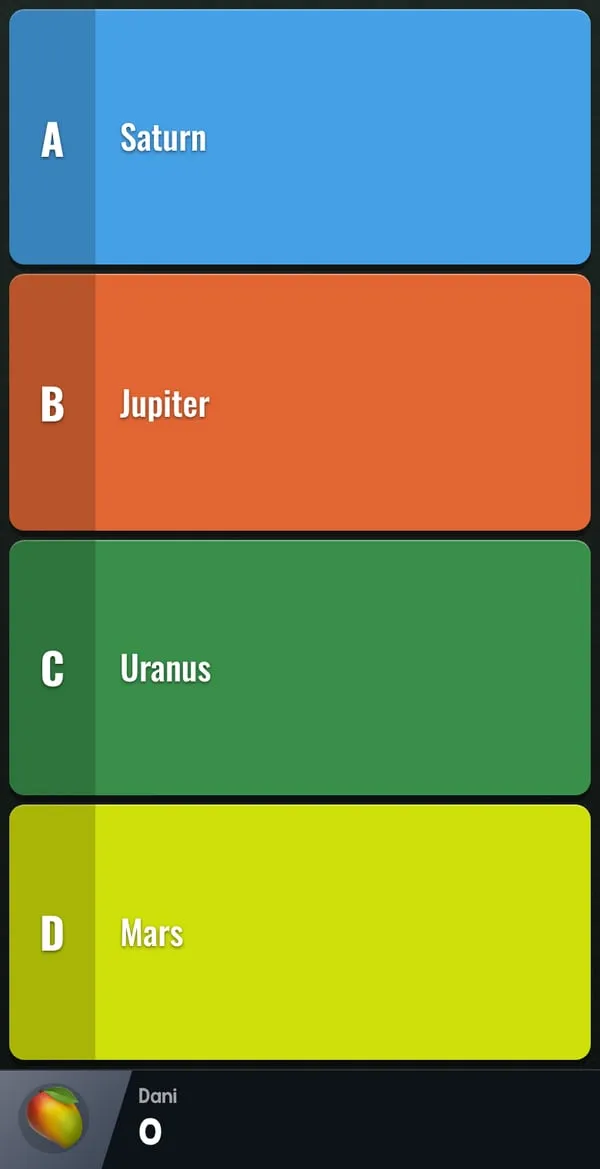
Meanwhile on the phones: the answers while a question is open, and nothing to tap the rest of the time. Phones never show a countdown, so every eye stays on the big screen.
Your keys
They work whenever the show's window is the active one.
| Key | What it does |
|---|---|
| Space or Page Down | Next. Starts the show, moves on, skips an intro or an explainer film. |
| Esc or P | Opens the host menu and pauses the show. Press again to resume. |
| ↑ ↓ Enter | Move through the host menu and choose. |
| ← → | In slideshows and PDFs: one slide back or forward. |
| J | In the presenter view: opens the jump list. |
- Presentation clicker
- Most clickers send Page Down with their forward button, so they work as a Next button from anywhere in the room.
- Game controller
- A controller connected to the computer works too: A or a trigger is Next, B or Start opens the menu.
- Fullscreen
- In Chrome and Edge, Esc opens the host menu even in fullscreen. Hold Esc to leave fullscreen.
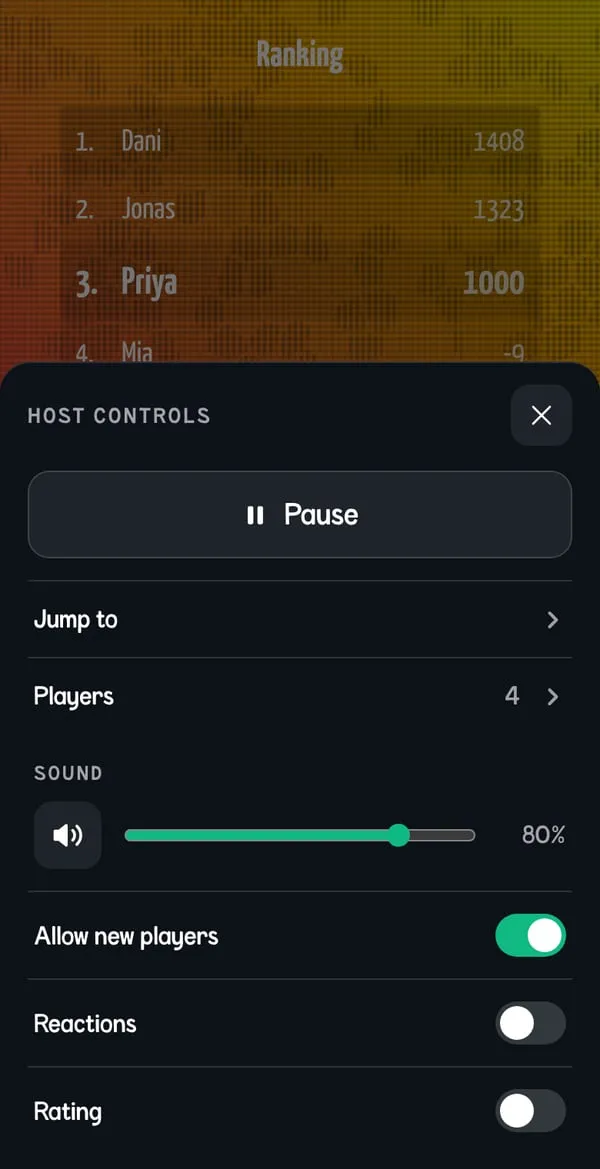
The host menu: pause, jump, adjust
Press Esc or P, or click the menu icon in the toolbar. The show pauses: timers, music and animations stop, and the big screen says PAUSED until you resume.

- Resume Back to the show, exactly where it stopped. Esc does the same.
- Jump to… Go to any round, forward or back, or end the show.
- Players Reactions lets players send emoji. Rating asks them for stars at the end. Copy invite link puts the join link with your code on the clipboard.
- Screen Fullscreen for the big screen, and the presenter view for you.
- Sound One volume for the whole show, music and effects.
- The keys A reminder at the bottom of the menu, in case you forget.
Jump to any round
“Jump to…” lists every round of your show. Pick one and the show carries on from there.
Going back to an earlier question? “Take back points when going back” returns the scores to where they were when that question started, so nobody scores twice. Uncheck it to keep every point.
The last row, “Final score”, ends the show. It asks twice.
Four more switches in the lobby
Before the show starts, the same menu also has:
- Let the first player run the show
- Whoever joins first gets the controls on their phone.
- Allow new players
- Switch it off to lock the room.
- Photo avatars
- Whether players may use a photo of themselves.
- Show big QR code
- Pins a large QR code to the corner of the lobby.

The presenter view: your cue cards
A second window that only you see. Open it from the toolbar or the host menu, keep it on your laptop, and leave the show itself on the big screen.
If nothing opens, the browser has blocked the window. Allow pop-ups for the site and click again.

Swipe sideways to see the whole screen.
- Where the show is On air, which question, how long the show has run, and a Pause button on the right.
- The answer The right answer, before the room sees it.
- Your speaker notes What you wrote for this question in the editor.
- The scoreboard Live points. The minus and plus take or give the points of the current question, and an Undo appears after each.
- Up next The next round with its answer and notes, so you can lead into it.
- Continue The same as Space. Settings on the left holds the jump list.

Edit players
Fix a name, set someone's points by hand, change an avatar, hand a player the controls or remove them from the show.
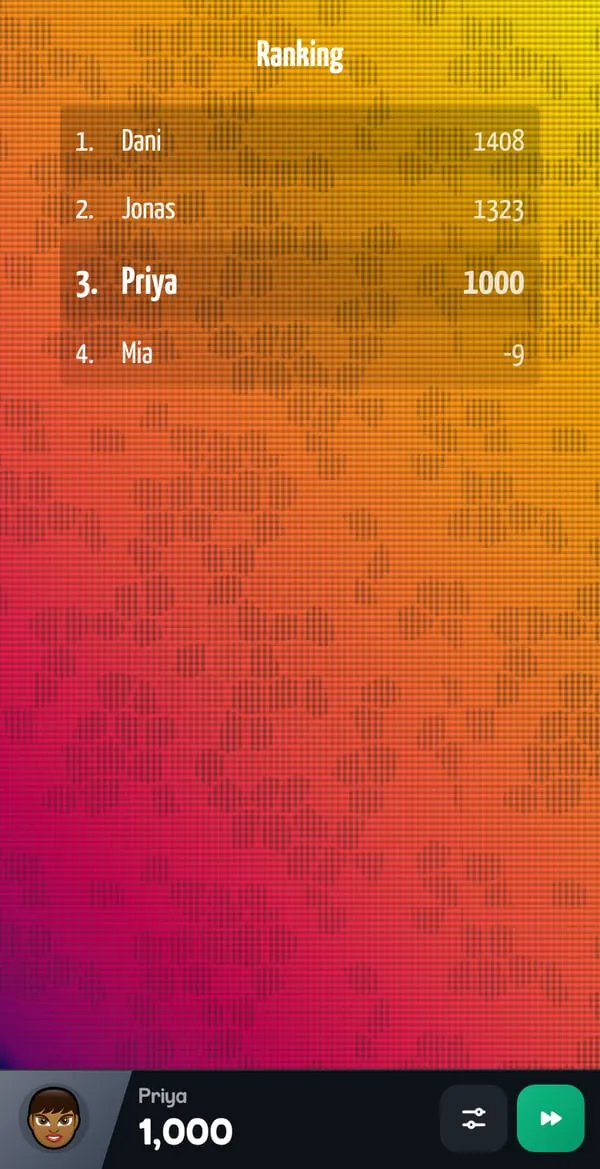
Run it from your phone
No keyboard near the TV, or you would rather walk the room with a microphone? Make one phone the host's phone.
- Join your own show as a player.
- In the lobby, click your name on the big screen and choose “Make Admin”. Or switch on “Let the first player run the show” and be the first to join.
- Your phone now has a Next button, and Host controls beside it.
What you can do from where
The host phone never shows a question's answer, so the host can play along.
| Big screen | Presenter view | Host phone | |
|---|---|---|---|
| Next, pause and resume | Yes | Yes | Yes |
| Jump to another round | Yes | Yes | Yes |
| Volume and mute | Yes | Yes | Yes |
| Lock the room, reactions, rating | Yes | Yes | Yes |
| See the answer and your notes | No | Yes | No |
| Give or take points | No | Yes | Yes |
| Rename a player, change an avatar | No | Yes | Yes |
| Remove a player | In the lobby | Yes | Yes |
| Hand over the controls | In the lobby | Yes | No |
When you are the judge
Most rounds score themselves. Two are built for the host to decide, and the presenter view lets you correct any score.
Buzzer Only: fastest finger, your verdict
You ask the question out loud and click “Activate Buzzer”. From then on every phone is one big buzzer, and the fastest player lands on the big screen.

- Who buzzed first The fastest player and their score. They answer out loud.
- Right or wrong One click gives or takes the round's points. The third button gives double.
- Any number Type your own amount and click Award.
- Reset Clears the queue for the next attempt. The buzzer stays armed.
- Manual Scoring
- A scoreboard you fill in yourself, for games away from the screen: a round of charades, a taste test, a dance-off.
- Any other round
- Disagree with the result? Use minus and plus in the presenter view, or set the points in Edit players.
The finale
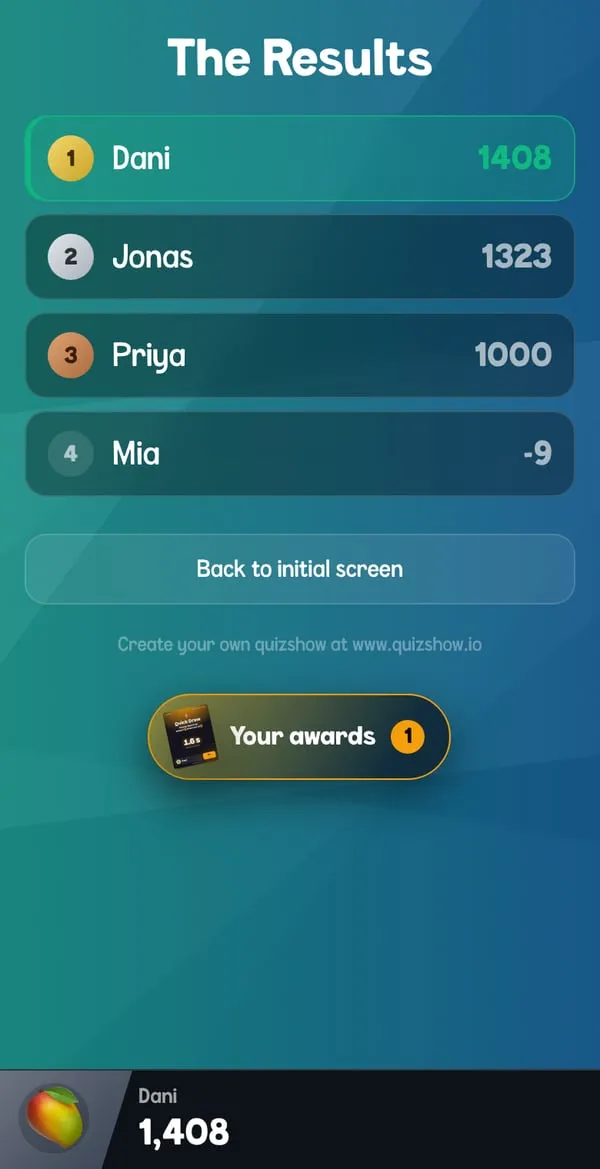
After the last question the final score takes over the big screen and names the winner.
Five looks
Pick the final score screen in the editor: Basic, Fireworks, Election Night, Prime Time, Skyline.
Awards
With Show Awards on, the show hands out awards for what happened during the night: the fastest answers, the closest guess, the best lie. Each winner gets their card on their phone, ready to share.
The order to announce
The presenter view lists who to call up: third place, second place, then the winner.
On the phones
Every player sees the final ranking. With Rating on, they are asked how they liked your show.
Host over a video call
Your players are not in the room? Share the show in a call. Everything else stays the same.
- Your computer The show in one window, the call in another.
- Share the show's window, with its sound
- The video call Zoom, Teams or any call that can share a screen.
- Everyone sees and hears the show
- Each player at home Watches the call on a laptop and answers on a phone.
- Share the window with the showAnd share its sound: most call software has a checkbox for it when you start sharing, in Zoom it is “Share sound”.
- Send the invite link“Copy invite link” in the host menu, then paste it into the chat. Or let everyone scan the QR code off the shared screen.
- One device is enoughA player without a phone at hand opens quiz.sh in a second browser window next to the call.
When something goes off script
It will be fine. Here is what to do in the moments hosts worry about.
- A player's phone went to sleep or lost its connection
- They open the page again. The phone comes back with their name and points, and is in again at the next question.
- Someone arrives late
- They join with the same code. If you locked the room, switch “Allow new players” back on first.
- There is no sound
- Browsers stay silent until you have clicked the page once. Click the speaker in the toolbar, then check the volume in the host menu and the speakers themselves.
- The scores are wrong
- Open the presenter view. Minus and plus correct a round, Edit players sets any number.
- You skipped a question by accident
- Host menu, “Jump to…”, pick the question. With “Take back points” checked the scores go back with you.
- A name you would rather not have on the big screen
- Edit players in the presenter view: rename the player or remove them.
- "This screen can't reach the buzzers"
- The host menu says so when the computer running the show has lost its connection. Check its Wi-Fi.
- You closed or reloaded the show's window
- The one thing to avoid mid-show: a reload starts a new show with a new code, and everyone joins again from zero. The browser asks before it lets you leave. Say no.
Now write the show
Start with a free account, write your first questions and rehearse them tonight.
Free to start. No credit card. Nothing to install.